Remingtonmgmt
Remote Access
This
document is intended to assist you if you are having problems accessing the
Remingtonmgmt server via the internet.
This document will cover a couple of different methods on how to connect
to the server. These two methods are:
- Via
the www.remingtonmgmt.com
website
- Using
MSTSC command
Please
read the document below to determine what method you will use.
Method 1 -
Via the www.remingtonmgmt.com website
This
method is probably the easiest when you are traveling. The only problem with this method is that
there is a piece of software that will need to be downloaded. If you are NOT an administrator of the
computer that you are using, then the program will fail to load. If you know you are not an administrator then
go to the “Using MSTSC command” method.
If you want to try using this method then please following the
instructions below:
Under
Internet Explorer go to the www.remingtonmgmt.com
website. Then scroll down until you see
the “Staff Login”, and click on it.
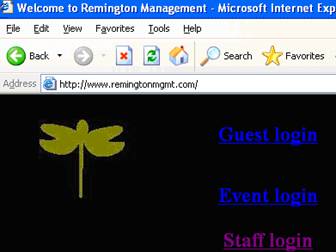
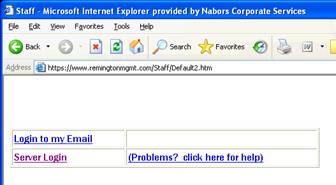
Once
the “Staff” page loads up in your web browser, then click on the “Server Login”
ling below:
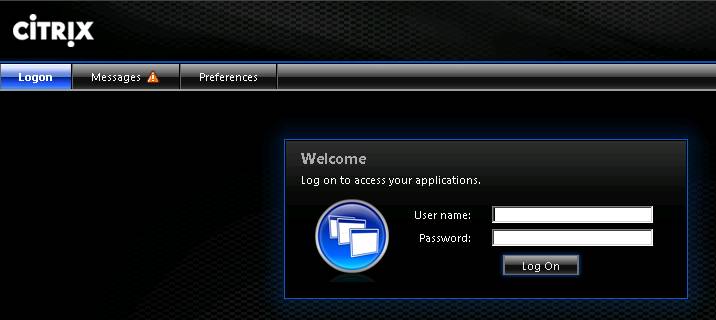
You
will be directed to this page below. Please
enter your ID and password to this server.
After
you login, you may be prompted to install software. You must have administrator privileges or
have someone login with administrative privileges in order to install the
software.
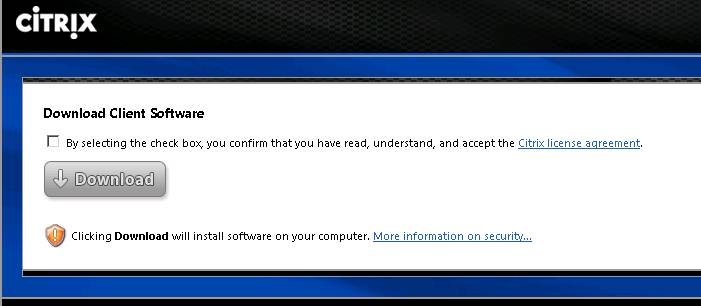
Once
you verify that you have administrator priviledges, then just click on the
checkbox, and click “download”. Once the
download is done, just run the installer.
Method 2 -
Using MSTSC command
With
this method there is no need to install any software. Please follow these steps below to connect to
the server.
From
your computer, click “Start/Run”
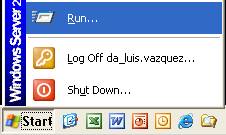
When
the “Run” prompt appears, type in “mstsc”, then click “OK”
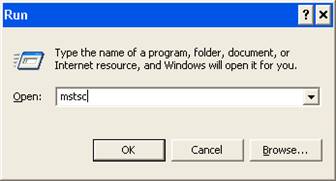
When
the prompt appears, type in the website address citrix.remingtonmgmt.com then
click “Connect”
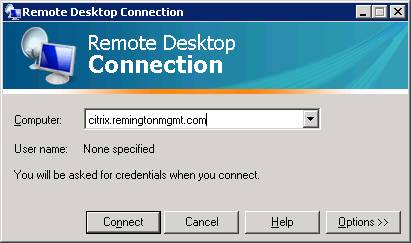
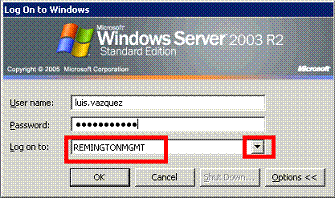
Enter
you ID and Password, then click on “Options”
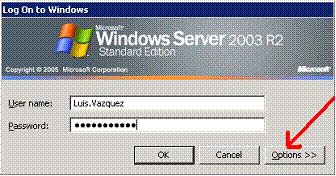
Make
sure that you have “Remingtonmgmt” for the “Log on to” drop down
selection. Then click “OK”
Once
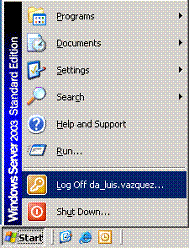
you are finished, you need to Log Off.
To Log Off from your session, all you have to do is to click on
“Start/Log Off”
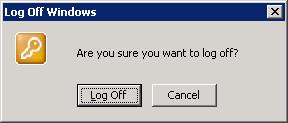
Then
click “Log Off” again.
You
are done!